Showing posts with label android. Show all posts

Unknown 16:25


Everything you need to know about rooting your Android
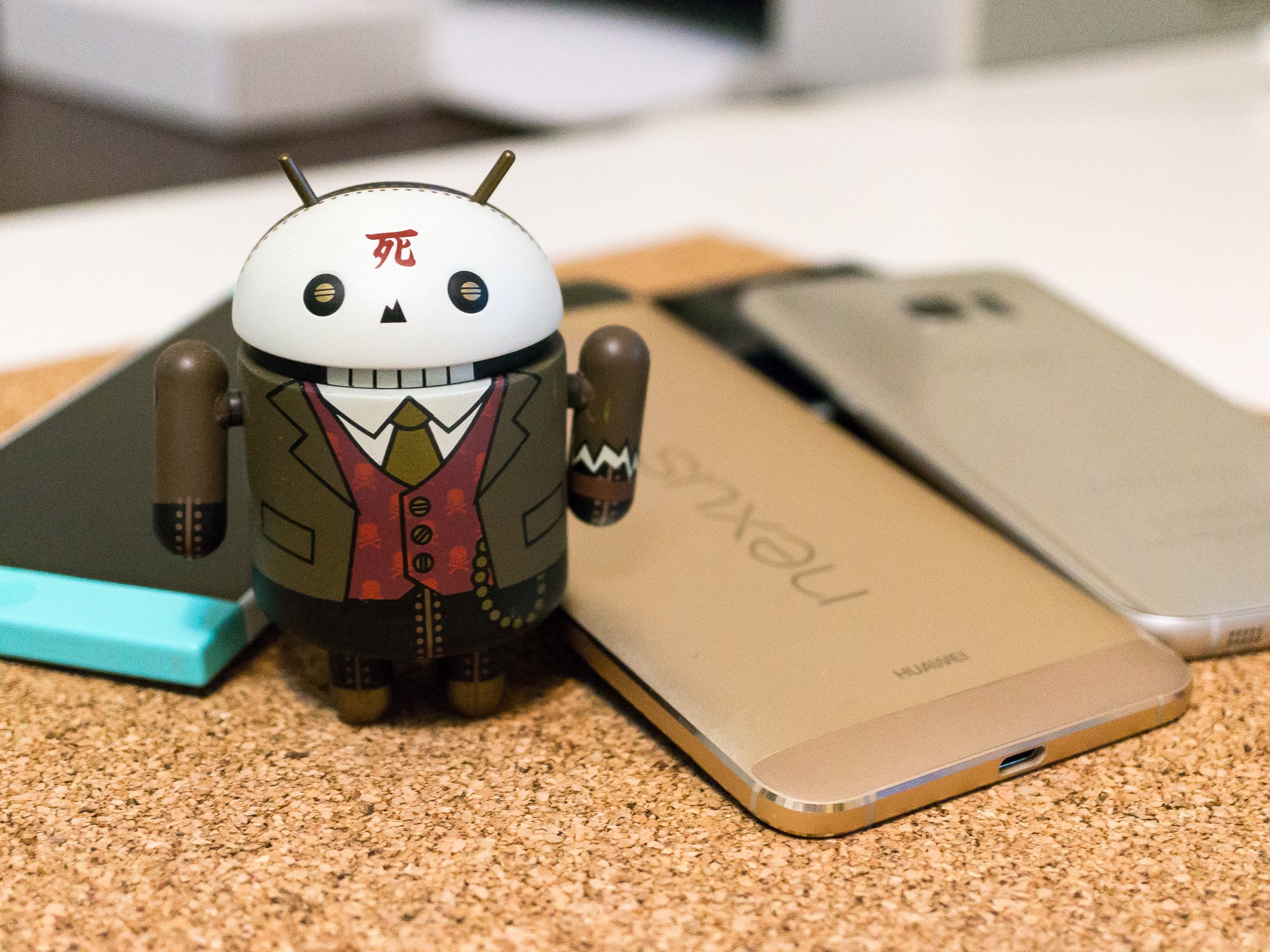
While your Android isn't in the same sort of jail an iPhone lives in, rooting can help you break out.
If you've researched anything about Android on the internet, you've probably seen and read about "rooting" one. There was a time when many of the Android phones available didn't live up to their potential, and root was the answer. Horrible software was the norm, applications that you would never use ran amok and wasted data and battery life, and the experience was bad all around.

Because every Android phone is running the Linux kernel and middleware very similar to a Linux distribution you would install on a computer under the hood, rooting them was the way to allow us to try and fix them our own way. Rooting is how you get complete access to everything in the operating system, and those permissions allow you to change it all. Modern Androids are quite a bit better than they used to be. Even the most inexpensive phone or tablet you can buy in 2016 will do more and perform better that the best Android phone available just a few years ago. But many of us still want to root our phones and are looking for more information.

Table of contents

  • What is root?
  • Should I root?
  • Getting ready
  • Commercial root apps
  • How to root
  • Samsung
  • LG
  • HTC
  • Motorola
  • Nexus
  • Other phones
  • What's next?

What exactly is root?

Sudo
When you root your Android, you're simply adding a standard Linux function that was removed.
Root, at least the way we're talking about it here, is the superuser. Your Android phone uses Linux permissions and file-system ownership. You are a user when you sign in, and you are allowed to do certain things based on your user permissions. Apps you install are also given a type of user ID, and they all have permissions to do certain things — you see those when you install them on older versions of Android, or you are prompted to allow them on Marshmallow or higher — in certain folders with certain files. Root is also a user. The difference is the root user (superuser) has permissions to do anything to any file any place in the system. This includes things we want to do, like uninstall application forced on us by the people who built them or the people who sells them to us as well as things we don't want to do that can put your Android in an unusable state. When you're doing things with superuser permissions, you have the power to do anything.

When you root your Android, you're simply adding a standard Linux function that was removed. A small file called su is placed in the system and given permissions so that another user can run it. It stands for Switch User, and if you run the file without any other parameters it switches your credentials and permissions from a normal user to that of the superuser. You are then in complete control, and can add anything, remove anything and access functions on your phone or tablet that you couldn't reach before. This is pretty important, and something you should think about before you begin.

Should I root my Android?
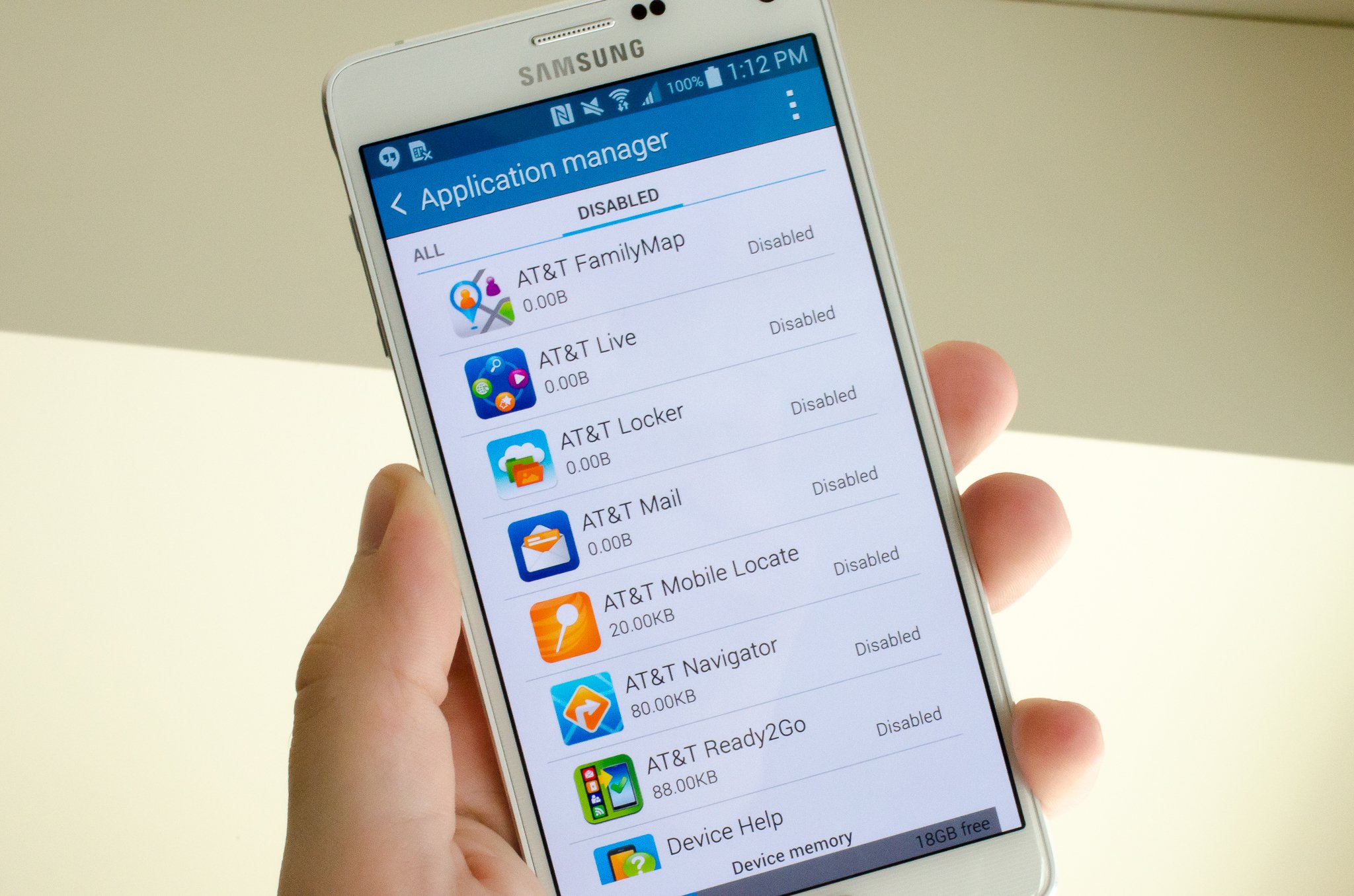
Bloatware
Yes. No. Maybe. All three answers are perfectly valid. People have different reasons to want to root their devices. Some do it just because they can — they paid for the hardware and think they should be able to do anything they like. Others want to be able to add things that aren't there, like internet servers or be able to "fix" services that are there but don't work the way they would like them to work. People might buy a phone because they like the hardware, but hate the software and want to change it. Mostly, people root their phones because they simply want to get rid of the extra things on it that they don't want. Every one of these reasons — as well as any reason you might have that aren't mentioned here — are the right reasons.
Most people want root to get rid of the bloat.
Before you do any preparation to root your phone, you need to remember that it changes everything about the inherent security from Google and the people who built it. Plenty of us don't like it, but being able to access an account with admin permissions was not included in release versions of Android on purpose. As soon as you add this capability, you are responsible for the security and integrity of the operating system and every application on it. For some, this is more responsibility than they want or need. Rooting isn't the answer for everyone. If you're not sure about the ways you can break things by doing them as root, you should learn more about it before you start. It's OK to not know things and to try and learn, but not knowing and doing them anyway can turn a very expensive Android into a paperweight. You also need to know that for many Android models, rooting means your warranty is null and void. Services (including apps as well as network access from your carrier) can be denied to you because of the security risk when you're rooted. The risk is real, because so many users go into it all blind and let security lapse. Not doing that is your responsibility — take it seriously!
Finally, there are plenty of users who simply don't care about this stuff. Any Android phone, no matter how restricted root access is, can do just about everything we want or need from a pocket computer. You can change the appearance, choose from over a million apps in Google Play and have complete access to the internet and most any services that live there. You can even make phone calls. It's great if you're happy with what you have and what it can do, and aren't worried about trying to fix what isn't (in your eyes) broken.

Getting ready to root


You'll need to do a few things to prepare your phone for rooting, depending on which method you use. Many of the ways require you install the Android SDK or unlock your bootloader. This sounds like a lot of scary work, but it's not difficult and knowing how to use these tools will help if things go wrong.
Here is our comprehensive walk through of how to set up and install the Android SDK
Depending on which phone you have, unlocking the bootloader is slightly different. The "standard" way is by using the OEM unlock command, which is outlined here. If you're using a Motorola, HTC or LG phone (as well as other brands like Huawei or Sony) you'll likely need to get a token you enter during the process. You'll find how to do that and who to get it from at each vendors developer pages. Remember that unlocking the bootloader on your Android may affect the warranty status.

Using commercial root apps

Using commercial rooting apps like Kingo Root or towelroot is straightforward, and can be done with or without a computer. While these apps can't root every phone, the people who make them are doing as best they can to keep the applications current.

While we can't validate the theories that these applications could potentially contain malware or send your data off to a server in some unfriendly nation, plenty of folks around the web have expressed concerns and doubts. You shouldn't ignore them. We recommend that you factory reset your Android before you download, install or run these applications to be safe. Your phone will remain rooted afterwards, and you can factory reset once again then sign in normally. Better safe than sorry.

Using Kingo Root

You can use Kingo Root with or without a computer. You'll find the download for both methods at the Kingo Root page — just select the one you want to use.
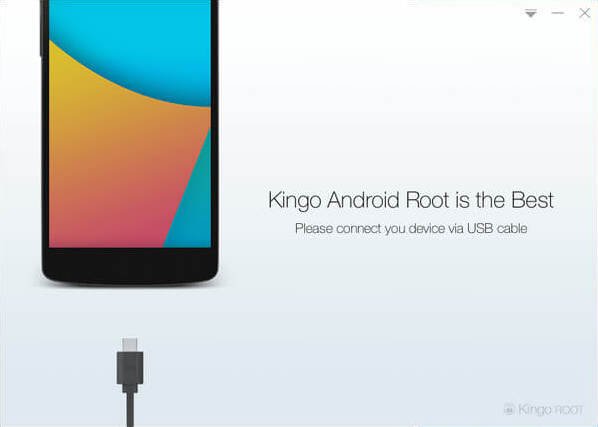
Kingo Root
If you're using a windows computer with Kingo Root, you'll need to have the correct USB drivers installed on the computer you're using. If you don't have these, the Kingo Root program will try to locate and install the correct ones during the process. Simply plug your phone into the computer and start the application. It's as simple as letting the software set things up, then you click the button labeled "root" in the software. As long as your phone is supported, the rest is automatic. You'll see a list of recommended root application to install after the procedure is finished, but if the program say it was successful your phone should have the superuser unlocked .
Kingo Root apk
It's easier to try and use the Kingo Root app on your phone to root. After you've downloaded it (and allowed sideloading of apps) you charge your phone to at least 50% and run the app. There's only one button to press, and after you tap it the rest is automatic. If the stand-alone version isn't successful, the computer version might be.

Full instructions and tutorials for supported phones can be found at the Kingo Root support page.

Using towelroot

towelroot
Towelroot is a popular rooting app written by Geohot, the well-known iPhone hacker. Using it is really easy:
  • Download the towelroot application from the official site
  • Install the app (after you allow sideloading) and run it by tapping the Lambda (the Greek letter) symbol in the middle of the app window
Towelroot will attempt to exploit the running kernel, giving temporary access to the system files. Once that happens, the correct files needed to run as root are pushed to the file system. A quick reboot later, and you're rooted.
Only install towelroot from the official towelroot page. There are plenty of mirrors and variants out there, but it's always safest to get files like this directly from the source.

How to root my phone?
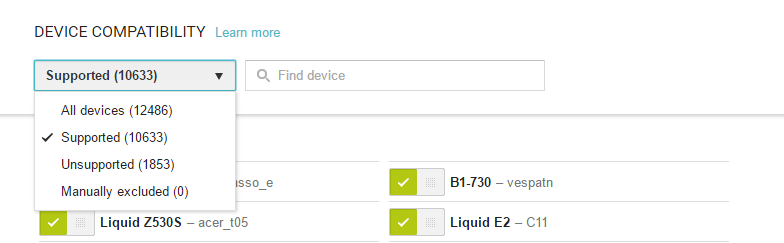
Over 12,000 Android devices
How you root your Android is going to depend on which one you have. There are over 12,000 different Android models (and that's only counting ones that can access Google Play) from hundreds of different manufacturers. Some of those are easy to root, while some of them aren't. There are even models that will probably never be able to be rooted because the people who make or sell them just don't want you to be able to do it. And that's OK! Android means choice, and every person who wants a security-focused device that won't likely ever be rooted like the BlackBerry Priv should be able to buy one. And people who want a device that's easy to root (with all the tools and files needed to unlock it provided by the manufacturer) can buy one. This is something to keep in mind when you're buying your next phone and you should support the manufacturer who shares your thoughts about rooting.
The best Android phones
With over 12,000 different models, we can't cover every single method to root every single device. We can point you in the right direction and help you get there, though.

Rooting your Samsung phone
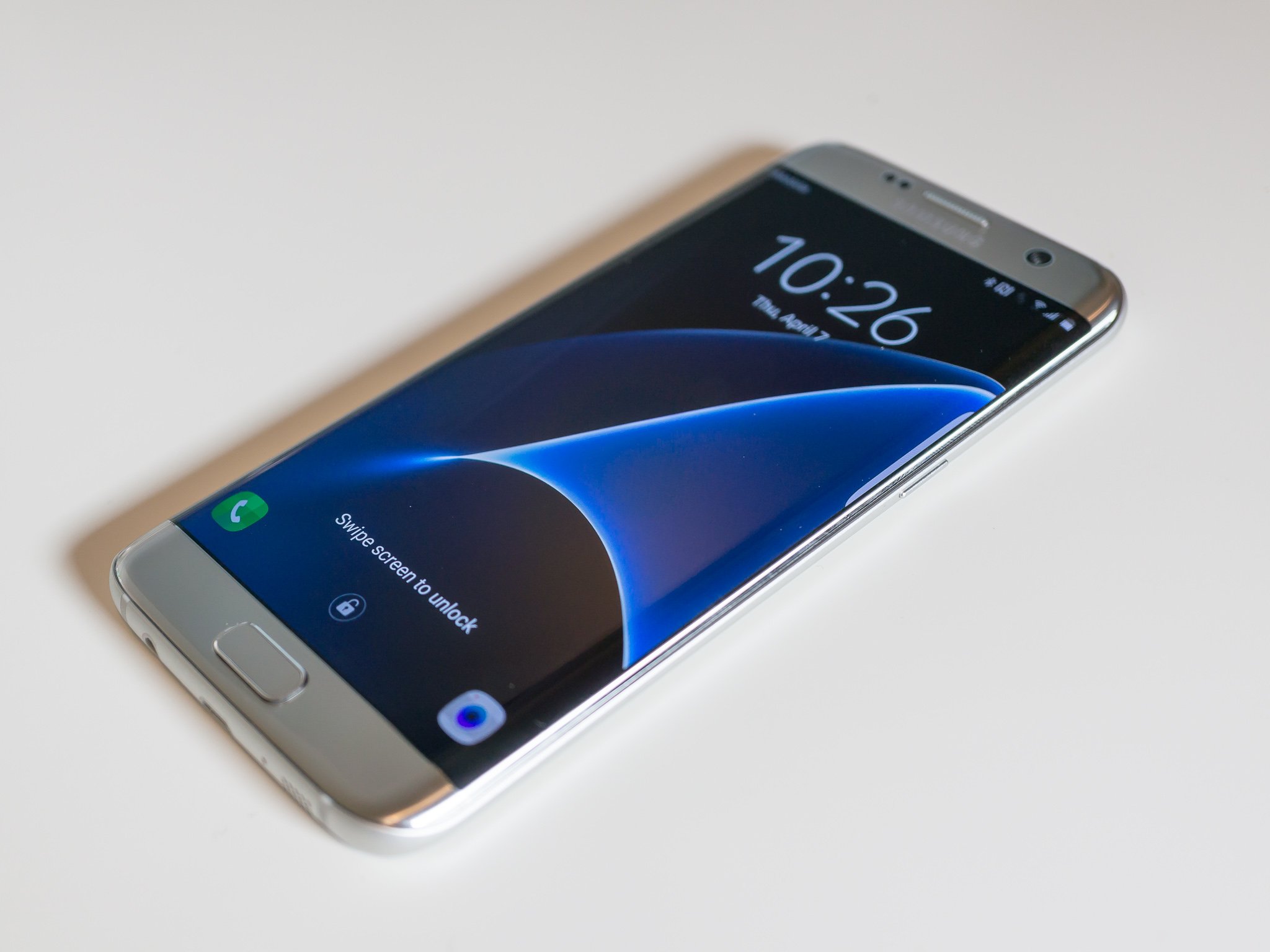
Galaxy S7 edge
Samsung used to offer "developer editions" of their popular models, but weak sales (they usually needed to be paid for in full with no type of subsidy or financing) they seem to have stopped production. We have only ourselves to blame — it's just not worth making something that nobody is buying.
Samsung also makes very lucrative deals with carriers, and most of the time those carriers want to prevent you from rooting your phone. Recent models from AT&T or Verizon are notoriously difficult to exploit, and all the U.S. versions of the Galaxy S7 are locked up and encrypted. There might not ever be a way to root them. This isn't true for unlocked models sold outside of North America though.
Knox can pose special problems when trying to root.
To root most Samsung phones you'll need to use a program called Odin. It's a low-level firmware flashing tool that can push image files to the storage and overwrite existing images. You'll also need the correct USB drivers for Windows computers. If you're using a Mac computer or running Linux, the software that flashes images is called Heimdall. They both work essentially the same, and carry the same risks — if you try and flash the wrong image or a bad image, your phone isn't going to be able to start. While this is often recoverable, know that there is always a chance you can ruin your phone or tablet, and your warranty is voided as soon as you begin.
Also, many Samsung phones ship with Knox security enabled. Knox is part of Samsung's special "Samsung Approved For Enterprise" feature where personal and work environments can be separated in a way that allows both to coexist on the same device. Knox can pose special problems when trying to root a phone that uses it, and it has a software counter that can show when device firmware has been tampered with. This means it's very easy for Samsung to void your warranty if you start fiddling with things.

Rooting your LG phone
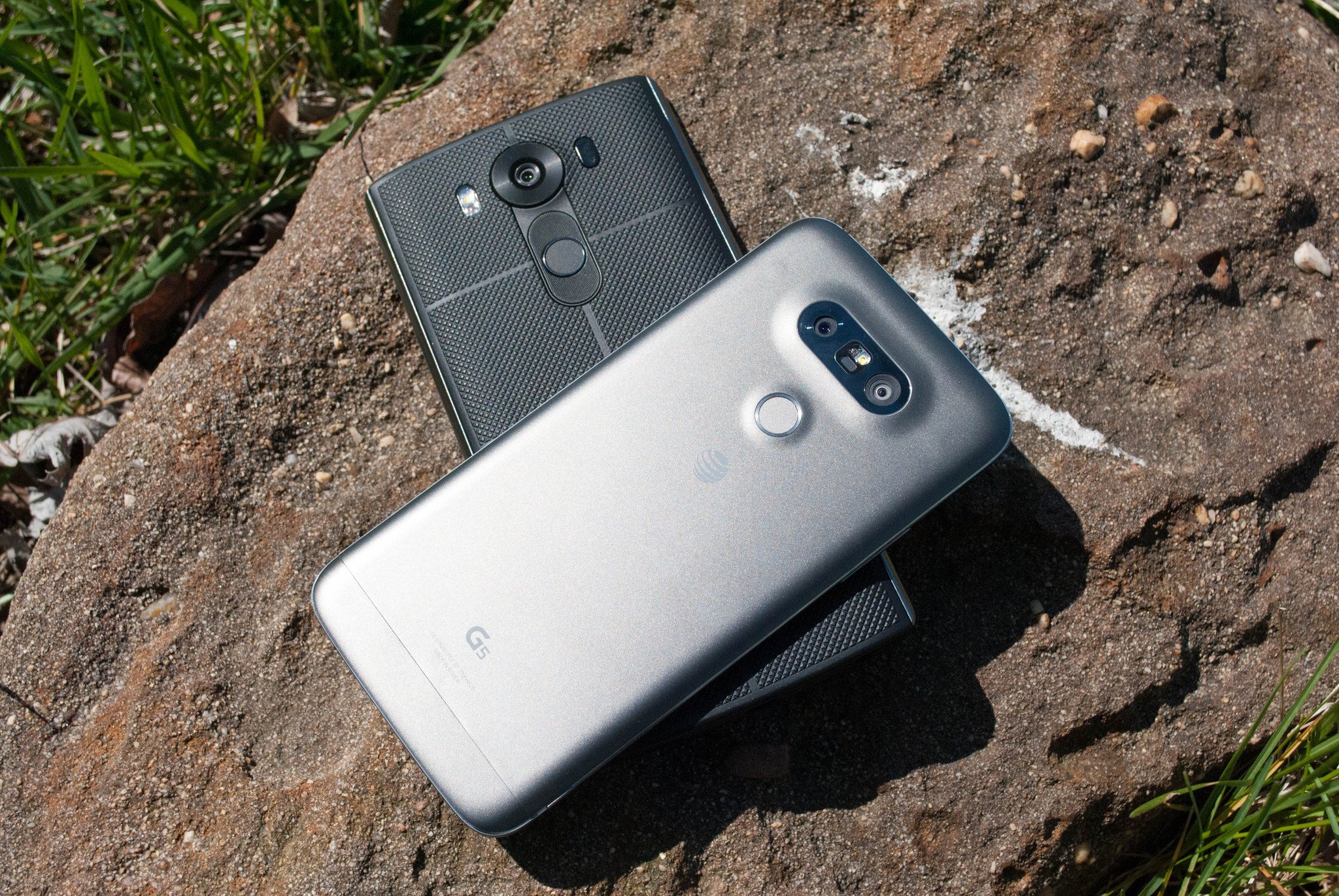
LG flagships
LG phones have several different methods to install the files needed for rooting. Some are completely bootloader unlockable and it's trivial to push the files through a custom recovery, while some are locked up tighter and require some special tricks. As we see with Samsung phones, carriers have a lot of influence here, so many AT&T and LG models take longer to find a method to root.
The LG G5 is simple to root, and you can do it without a computer with both commercially available rooting apps as well as apps from Android enthusiasts like yourself. There are security questions any time you use software built by someone else that could potentially have full access to all the data on your phone or your computer, and you'll need to read everything you can and decide if you want to go this route. Apps like OneClickRoot or AndroidRootPro are a few examples. There are plenty of satisfied users as well as users who question the methods. Listen to both sides and decide what you think here. An alternative is unlocking your bootloader and installing an open-source custom recovery that you can use to flash the needed files or even pre-rooted firmware. This requires a little bit of computer knowledge, but it's not that difficult.

Rooting your HTC phone

HTC flagships
Much like LG phones, many HTC models can be bootloader unlocked through the HTC Developer program. You'll find complete instructions for doing it here, as well as warranty information you need to know if you give it a try.
The HTC 10 is easy to root, and using the HTC Developer tools to unlock the bootloader allow for sending images to the phone to enable rooting and even more. There are also commercial services like Sunshine that can root your phone through an app or provide mail-in services where they do it for you. Again, it's up to you to decide if you feel comfortable with these services or if you would rather use the Android SDK and do things the manual way. Both methods are known to get you rooted and ready to do the things you wanted root to do.

Rooting your Lenovo (Motorola) phone

Motorola phones
Motorola also offers a pretty liberal bootloader unlocking policy, which you'll find at their developer site. Using the standard Android SDK tools, you can unlock your bootloader so that a custom recovery image can be flash. This allows you to flash any other system image to your phone.
If your Motorola phone isn't covered under their bootloader unlocking policy (see the list here) — this means Verizon, of course — you might have to resort to exploits or commercial software like MOFOROOT or OneClickRoot. Once again, we have to remind you about using tools created by someone else that may have admin access on your phone or your computer, but the option is available.
We're waiting to see if the coming generation from Motorola is as developer friendly as they have been in the past, and we'll update accordingly.

Rooting your Nexus phone
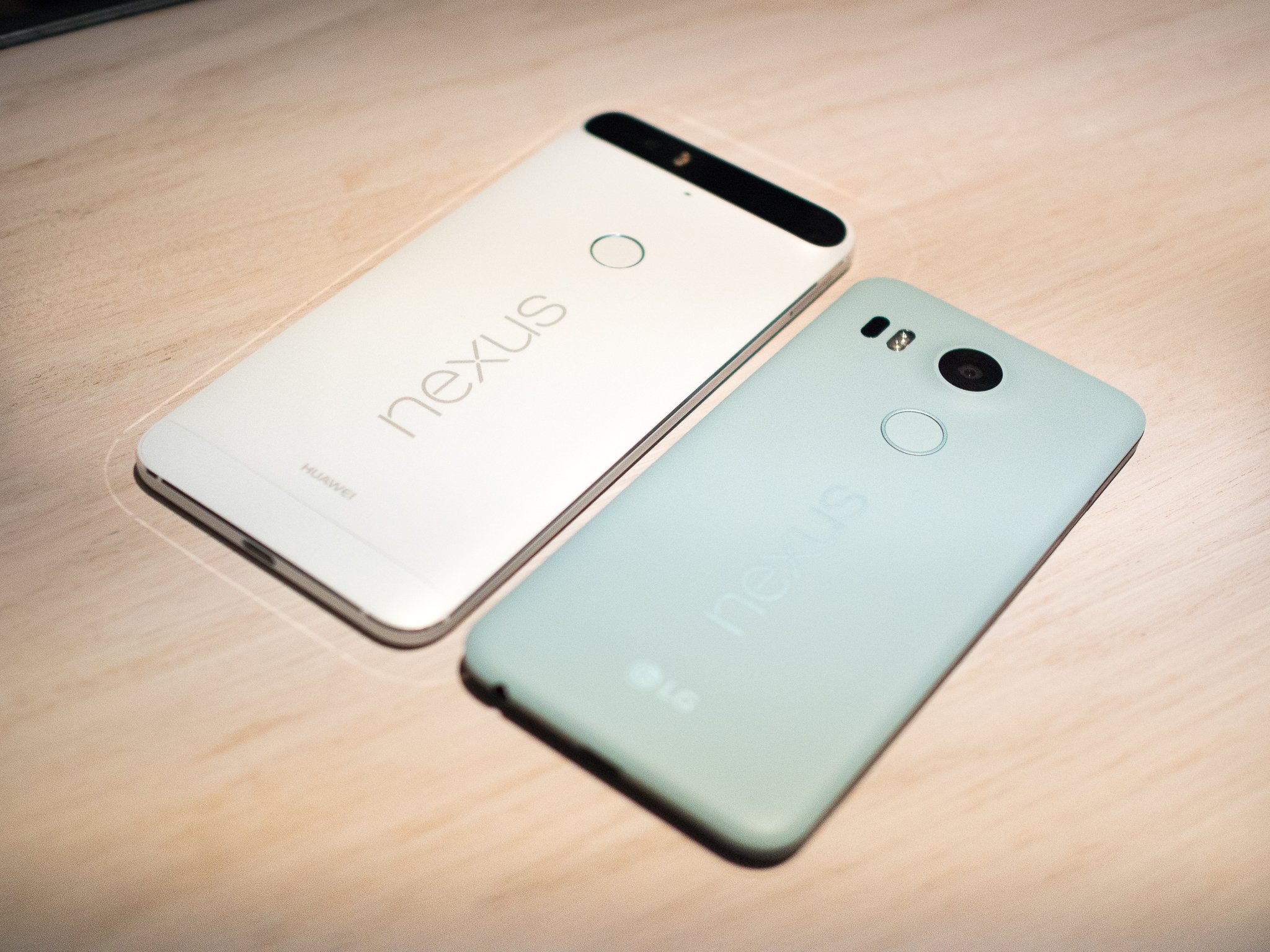
2016 Nexus
To root your Nexus phone, you should start with learning how to install and configure the Android SDK. There are plenty of one-click scripts or toolboxes that will unlock your bootloader and get you ready to flash (or even flash it for you) a custom recovery, but there's a great reason to learn how to do it yourself — you are able to fix most anything if it goes wrong by using the Nexus Factory Images.
Google not only supports unlocking your bootloader, they also give you full and complete instructions on how to do it, how to flash third-party images and how to go back. Unlocking the bootloader doesn't break any warranties as Google realizes that there are many valid reasons to flash experimental on the developer/reference device for Android. Take advantage of this, and use the tools Google provides!
Once a third-party recovery image is flashed, you're easily able to push anything you need for root or any other image to your Nexus. Because it's the reference phone and easy to alter, you'll find plenty of tools and resources for things you can do after you've rooted. We highly recommend a Nexus phone to anyone who wants to tinker with the Android software platform.

Other phones

As mentioned previously, there are over 12,000 current Android models from hundreds of manufacturers. There's no way to include each and every one on a single page.
Some of these phones come with a method (either apporved by the manufacturer or found by a third-party) to unlock the bootloader and use the custom recovery method to root them. Many of these other phones can be rooted with applications like Kingo Root, with or without access to a computer. Phones from names you know, like Sony or Hauwei, are supported as well as phones from companies you might not have heard of like Vivo or Phicomm. You'll find a partial list of supported phones here.
Commercial root apps work, but check out the pros and cons before you use them.
Apps like Kingo Root work because they take advantage of an exploit (a bug or glitch) in the software. This means that many security applications will identify them as a virus, and that software updates can (and do) break compatibility with them. Not every phone can be rooted through an app that leverage an exploit, but many can. It's certainly worth a look to see if your particular phone is supported. These services are profitable, and profitability means time and money is spent to keep them current and working on as many models as possible.

Here's where we will discuss the ethics of companies like Kingo Root or OneClickRoot. It's good to question the methods and motives behind any company that wants access to potentially sensitive information, and a healthy dose of skepticism is a good thing. A lot of folks feel that these kinds of apps are unsafe or follow unsafe practices, and they may be correct. On the other hand, plenty of people have used the apps and services and are completely happy with the results. We can't speak on it either way, as we're not involved in the creation or testing of any of these apps. Our job is to inform you that they exist, and let you know that there is always a bit of inevitable controversy surrounding them.

Where to go from here?

Now that you're armed with a bit of information about what root is, why you might want to do it and where to go to find the methods, you're able to do some legwork.
The most important part of the entire process is to read. Find every bit of information about rooting your particular phone or tablet, read up on the intricacies of the Android SDK and flashing a custom recovery for your phone, and find out how to go back before you connect any cables or install any software. Even the easiest phones to root require some general computer knowledge — your Android is a computer — so you should make sure you're able to understand things like working with zip files or using a file manager. Remember — it's always OK to have questions and ask for help.

A good place to start is in forums. Our forums are filled with people who hack and crack at Androids for fun, and other resources like XDA Developers forums can be a goldmine of information. Never overlook information that's readily available when it comes to hacking at your expensive phone. Rooting offers a long list of possibilities for responsible and safe users, so make sure you're informed and careful and have fun!
Unknown 16:05


Best Android Launchers

Best overall

Action Launcher 3

Action Launcher
See at Google Play
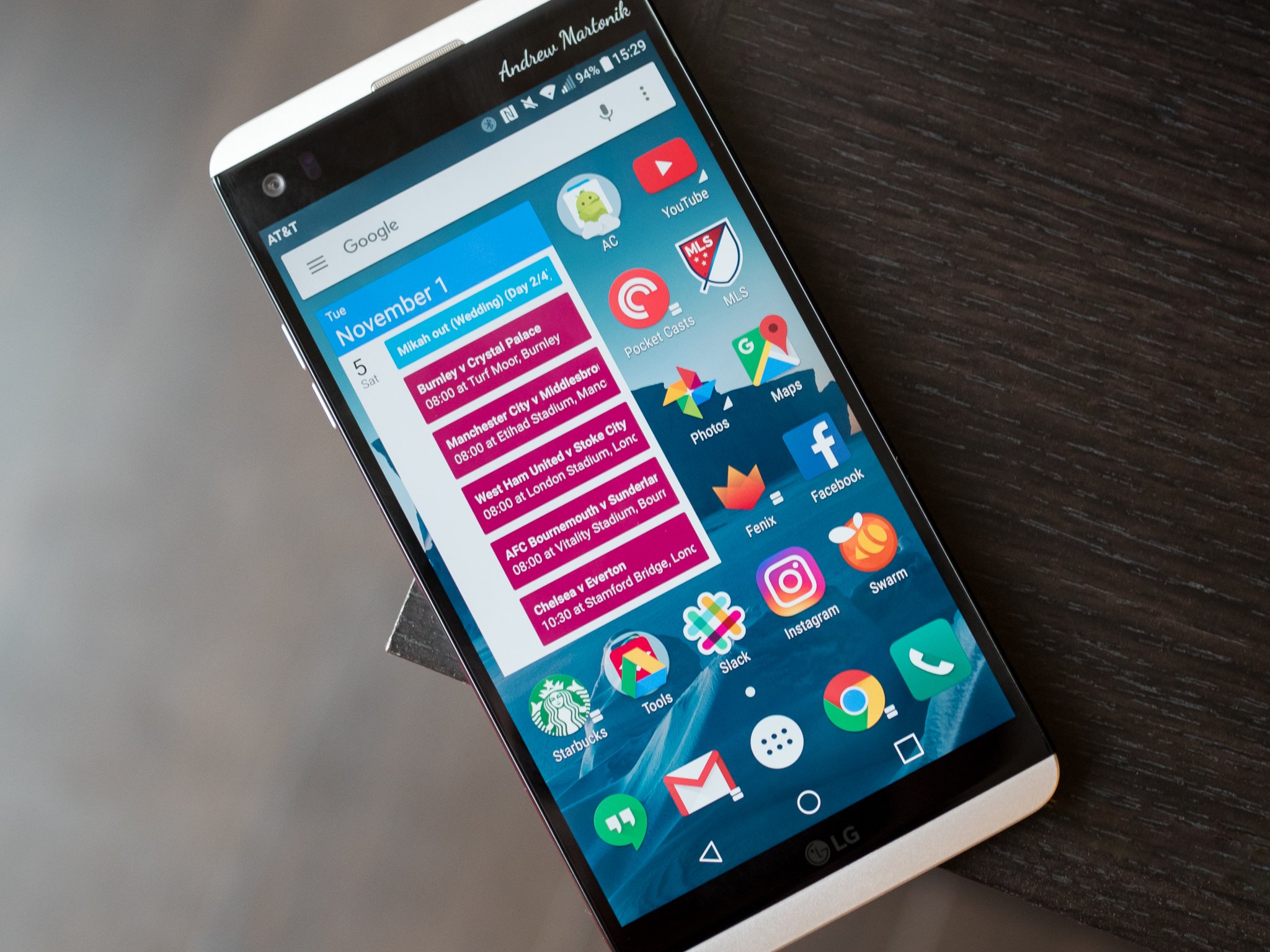
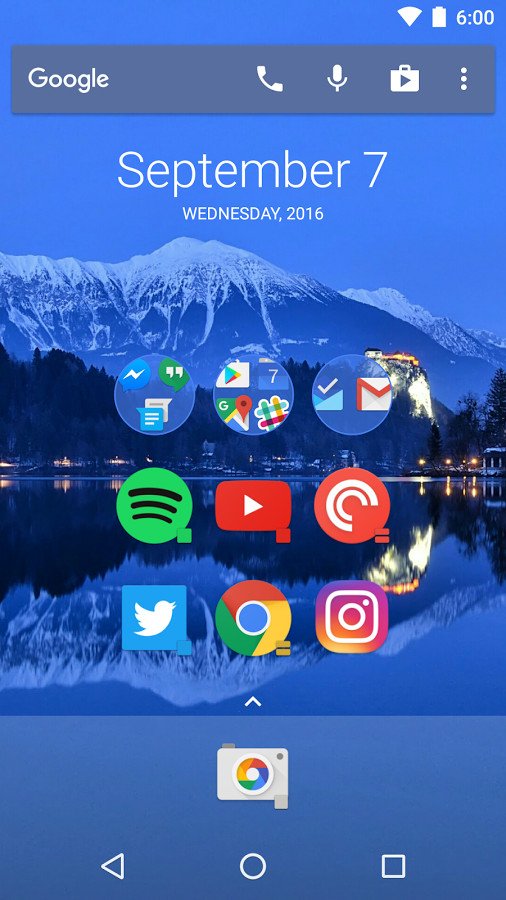
Action Launcher brings a ton of thoughtful features plus lots of additional tweaks that you expect from a custom launcher. Replace the traditional app drawer with a slide-in Quickdrawer, maximize on-screen real estate with Shutters and tweak the home screen search bar with the customizable Quickbar. Beyond that, Action Launcher also offers theming options, suggestions for app icon replacements and a beta feature to normalize icon sizes.
At the same time, Action Launcher regularly incorporates the latest design and features from Google's own launcher, meaning you don't have to loose that Google feel when you get all of these extra features. For example those using Action Launcher on Android 7.1 today can already access to new app shortcut features from the home screen.
The best features of Action Launcher 3 require a paid upgrade to the Plus version, but it's worth every penny.
Bottom line: If you're feeling bored with your phone's launcher and want a feature-packed replacement, Action Launcher has you covered.
One more thing: You don't have to pay for Action Launcher's Plus features, but you really should if you plan to use it full-time.

Why Action Launcher 3 is the best

A super powerful launcher with plenty of slick customization options.
Action Launcher can be as simple or as feature-packed as you want it to be, depending on how you set it up. All of the tools are there to keep your home screens looking minimalistic while providing tons of features and options to make the most of the available space. Shutters and Quickcuts turn your app icons into so much more, while the customizable Quickbar takes what other launchers use as dead space and turns it into exactly what you want.
If you want co change the entire theme of your phone but don't want to fiddle around finding all of the pieces yourself, Action Launcher's theme engine helps you customize things so it all looks neat and tidy — including custom app icons — without all of the legwork. But if you don't mess with themes, you know you're getting a great Material Design look with inspiration from the latest Pixel phones, even if you haven't updated to Nougat just yet.
For just $4.99 you can unlock all of Action Launcher 3's features, and you really should give it a look if your current launcher is leaving a bit to be desired.

Best clean look

Google Now Launcher

Google Now Launcher
See at Google Play
If you want the clean, simple home screen experience just as Google intended, you'll want to use the Google Now Launcher. This is the launcher that's pre-installed on Nexus phones, and it's all about giving you a basic but extremely quick experience with access to your apps and widgets — and of course Google Now is just a single swipe away.
You don't get advanced options for extra gestures or themes, but some people prefer a simple layout and Google Now Launcher absolutely delivers in that respect. It's updated regularly by Google as well, though the future is uncertain with the Pixel phones now shipping with their own different launcher.
Bottom line: Use the Google Now launcher if you're looking for high stability and a consistent Android experience. Pair it with the Google Keyboard for the full experience.
One more thing: Things are a bit in flux right now in terms of the launcher on Nexuses versus Pixels — this launcher may soon take on a new look in the future.

Best to customize

Nova Launcher

Nova Launcher
See at Google Play
Nova is a massively popular launcher that offers a whole bunch of animation options, folder views and home screen behaviors. One particularly cool addition is swipe actions, which allow app icons to act as a folder with a swipe, or a standard app launch with a tap, similar to Action Launcher's feature.
Theming Nova with custom icons and custom wallpapers is easy, especially with the Google Drive integration. You can back up your Nova layouts and themes directly to the cloud service of your choice, and restore backups directly from the cloud, too, which can make setting up a new phone a great deal easier than putting everything back how you like it manually.
Nova is a highly functional launcher that can be as subtle or as loud as you like, making it completely unique if you spend the time tweaking it.
Bottom line: If you're willing to tweak things a bit, and are going for an exact look, Nova Launcher could be the one for you.
One more thing: Consider the $4.99 in-app purchase to unlock its more advanced features with the "Prime" upgrade.

Conclusion

Home Screen launchers are heavily influenced by personal taste, and while not everyone wants the same things from their launcher the robust feature set of Action Launcher can be the best choice for most people. It offers great features, lots of customization choices and integrates the latest design guidelines from Google.

Best overall

Action Launcher 3

Action Launcher
See at Google Play
Action Launcher brings a ton of thoughtful features plus tons of additional tweaks that you expect from a custom launcher. Replace the traditional app drawer with a slide-in Quickdrawer, maximize on-screen real estate with Shutters and tweak the home screen search bar with the customizable Quickbar. Beyond that, Action Launcher also offers theming options, suggestions for app icon replacements and a beta feature to normalize icon sizes.
At the same time, Action Launcher regularly incorporates the latest design and features from Google's own launcher, meaning you don't have to loose that Google feel when you get all of these extra features. For example those using Action Launcher on Android 7.1 today can already access to new app shortcut features from the home screen.
The best features of Action Launcher 3 require a paid upgrade to the Plus version, but it's worth every penny.
Bottom line: If you're feeling bored with your phone's launcher and want a feature-packed replacement, Action Launcher has you covered.
One more thing: You don't have to pay for Action Launcher's Plus features, but you really should if you plan to use it full-time.

Unknown 15:36

3 Million Android Devices (Mostly in the US) Are Vulnerable To Malware Attacks


As per the report published in The New York Times, it is explored by Department of Homeland Security in the US. They have even issued a CERT advisory about the vulnerability. blu-was-the-manufacturer-of-the-largest-percentage-of-affected-phonesUsers who have installed certain software from Shanghai Adups Technology, has become backdoor on certain Android devices. Due to this over 3 Million Android devices are vulnerable to Man in the Middle attack. In other words, hackers can even fully control your devices.
User’s calls, messages and other information is vulnerable. The attack hits at root level and sends device information and more to a server in China, and to two domain names that were hard-wired into the affected handset’s firmware. Until now, 2.8 million devices are affected from this vulnerability.
Department of Homeland Security has flagged Huawei, BLU and ZTE devices as prone to the vulnerability. Here’s a list of devices which have got warning regarding the threat:
  • BLU Studio G
  • BLU Studio G Plus
  • BLU Studio 6.0 HD
  • BLU Studio X
  • BLU Studio X Plus
  • BLU Studio C HD
  • Infinix Hot X507
  • Infinix Hot 2 X510
  • Infinix Zero X506
  • Infinix Zero 2 X509
  • DOOGEE Voyager 2 DG310
  • LEAGOO Lead 5
  • LEAGOO Lead 6
  • LEAGOO Lead 3i
  • LEAGOO Lead 2S
  • LEAGOO Alfa 6
  • IKU Colorful K45i
  • Beeline Pro 2
  • XOLO Cube 5.0
You can read more about he issue over CERT.

Unknown 11:26

App Indexing & The New Frontier Of SEO: App Packs & App Store Search

In this third and final installment of a series on app indexing and how it impacts search engine optimization, contributor Emily Grossman discusses how to rank apps in Google search results, as well as in Google Play and the iTunes App Store.


apps-mobile-smartphone-ss-1920 SEOs who are not paying attention to apps are missing a large part of the mobile SEO picture. Even if your company does not have an app, recent changes to Google mobile results allow apps to compete with your website for the same rankings. In many cases, app results are winning.
In addition to Google’s Deep Linking changes, which focus on crawling and ranking internal app screens, there have been significant changes to the way Google ranks entire apps, often directly at the top of the search results.
The inclusion of App Packs in mobile search results has dramatically improved app discovery in Google. Now, 27 percent of people find apps through web search, compared to just two to three percent in 2014.
Beyond that, Google is further minimizing the Google Play Store by testing Android app downloads directly from search results. Despite these gains in mobile web search, 40 percent of people still find apps by searching the OS-specific app stores (the Google Play Store and the iTunes App Store), so the app stores and app store optimization are still a critical part of any app marketing strategy.
Apps and app deep linking have changed mobile SEO substantially, especially in the past nine months, and their impact has become much more visible.
This is the third in a series of articles designed to demystify the important linkages between SEO and app marketing. The first and second articles focused on how to use deep linking and app indexing to drive discovery of deep app screens in iOS9 Apple Search and in Google Search.
This article will explain how to rank entire apps in Google search results, called App Packs, as well as in the OS-specific app stores, Google Play and the iTunes App Store.
The relevant ranking factors that will be discussed in this article are summarized below:

How To Rank In Google Apps

Google has been ranking apps directly in mobile and desktop search results for some time now. But until recently, Google only displayed apps as traditional blue links to app store download pages, which were evaluated with an algorithm similar to the regular web-ranking algorithm.
Historically, searchers looked for apps in OS-specific app stores. Unlike a search engine in a browser, the app stores were included natively on the phones and only showed app results that were compatible with the search’s device.
In the past year, however, Google has gotten better at evaluating and ranking apps, as well as detecting and filtering for device and OS compatibility. Now, more and more app search traffic is moving to Google.
To meet the growing demand, Google added the new Universal “App” option in the top of their mobile navigation, and soon after, launched the stylized App Packs to search results.
As you will recall, App Packs are different from app deep links because they send search traffic directly to the OS-specific app store landing page, rather than opening a deep screen in the app on the user’s phone.
App Pack results are OS- and device-specific, so only apps that will work on the device that you are searching from (based on the handset and OS version number) will rank.
As shown below, they are presented in Google’s mobile search results as colorful tiles that include the app name, icon, star ratings and price.
Picture2 App Packs can include one, three or six apps and often also include an AJAX expansion arrow (highlighted above) that will allow as many as 12 apps to be shown. For every app that is included in an App Pack, one web ranking is pushed off the page.
This means that even if you are not promoting an app, the App Pack rankings could dramatically impact your brand’s mobile search visibility. If your website was ranking number one, it could be in position seven now because it has been pushed down by six apps above it.
App Packs are triggered in mobile search results when Google determines that a user is looking for an app or a task that could be performed by an app. Right now, App Packs primarily show up when a user searches for common app head-terms like “games” or for tool-related queries like “photo editor” or “travel planner.
App Packs are also ranking well in queries for specific app titles or brands, like “Angry Birds” or “Disney.” App Packs may also be triggered by different types of keywords, depending on the context.
NOTE: Most keyword reporting tools are not effectively reporting on App Packs, so you should test on physical devices or a device-specific simulator to see the real impact that App Packs are having on your top keywords. Remember, Android and iOS devices will be different.
Google has not published any data on the number of searches that are currently containing App Packs. This is presumably because they can vary substantially depending on the searcher’s device and because Google is still testing and tweaking the value that App Packs provide users.
Google has also not provided any click-through rate (CTR) data on this type of result, but it would seem the CTR varies based on the number of apps that are presented and the placement of the apps. Google could even use this data to test and tweak the App Pack presentation aspect of the algorithm.
When there is a sizable and strong group of potential apps to rank, Google will generally float the App Pack to the top, but if there are fewer or weaker apps that should rank, Google will sometimes put the App Pack at the bottom of the results.
It is currently possible, but less common, to see an App Pack mixed into the middle of a result set, like a News or Image result might be.

App Pack Ranking Factors

Google crawls app landing pages from both app stores and uses its own algorithm to determine which apps should rank in an App Pack. They do not rely on rankings in the OS-specific app stores (Google Play or the iTunes App Store) for these rankings.
However, often the apps that rank well in an App Pack also rank well for similar searches in their OS-specific app store because they share many of the same ranking signals.
Google treats App Titles like Title Tags and App Descriptions like on-page text. In a previous iteration of the App Pack presentation, a portion of the App Description was included like an SEO meta description, and though the current presentation does not include any part of the description, it does still contribute keyword relevance.
One of the best ways to target Google App Pack search results is by adding appropriate keywords to your App Titles and Descriptions when submitting apps to the OS-specific app stores. For example, users in an app store may not search for “kids app” because “app” is implied from the context, but a Google searcher will almost always include “app” if they are looking specifically for an app. Similarly, searchers in the Google Play store may not include “Android” in their query, but Google searchers likely will.
Google may also rank apps based on keywords from the user reviews that are included on the app landing page. Like traditional on-page SEO, keywords at the top of the page are given the most weight so the impact of keywords in user reviews is often quite minimal but can occasionally improve an app’s ranking in the Pack.
Star ratings are also a strong App Pack ranking signal. It is possible for an app with a keyword match in just the description to outrank an app with a keyword match in the title if the app has a higher star ranking. Star ratings can also impact the click-through rate for the app, since Google scrapes and displays star ratings in the App Pack result.
Google has also indicated that App Indexing may have a slight, positive impact on App Pack rankings. The algorithm may also evaluate external links and social signals to the app download pages, as it does on traditional web page rankings, but this is still unclear.

Ranking In OS-Specific App Stores

In addition to App Packs in Google Search, OS-specific app stores can also rank and drive downloads to entire apps. Since a large portion of searchers (40 percent) are still using the OS-specific app stores to find apps, it is important to make sure that your app is ranking there, as well.
The optimization of applications for ranking in the OS-specific app stores is called App Store Optimization (ASO). In many cases, developers that build and submit apps in these marketplaces are unaware of the value and strategy behind ASO, so simple changes can sometimes drive significant results.
Most SEOs have a normal workflow that they rely on to optimize web content and even app content for rankings in Google, but measuring success and ranking in the app stores is a bit different. Besides having less sophisticated ranking algorithms and reporting, neither of the OS specific app stores has directly engaged with the SEO community to communicate Best Practices. There has been no explicit discussion of the prioritization of ranking signals beyond simply specifying character counts and warning about trademark infringement.
Most of what is “known” about the OS specific app store algorithms has been determined through testing and experimentation over the years.
OS-specific app stores have access to more information about the app than Google’s crawlers do, but they are still in the early phases of search engine development (think web directory submissions à la 1995). 
Neither app store appears to have access to any of the deep linked content from within apps,* so currently, they determine keyword relevance for search results based primarily on meta data that is submitted with the app manifest and dynamic ranking factors that reflect how the app is performing at the time. Apps with the highest overall performance in both areas will achieve the highest rankings.
*Google could easily share App Indexing data like app screen titles and descriptions with the Google Play Store to influence Google Play rankings in the future. We suspect that they have held off on using App Indexing as a major ranking factor in the Google Play Store because it would unfairly disadvantage apps without web parity that are unable to participate in App Indexing (apps without web parity can only participate in App Indexing if they are part of an exclusive beta).

Submitted Meta Data

The iTunes App Store and Google Play use slightly different algorithms. With the exception of the Keywords Field, both stores evaluate the same elements (sometimes called different names), but they attribute different algorithmic weight to each.
A summary of Submitted Meta Data components including the App Title, App Category, Keyword Field, App Description and Developer Account Name are outlined below, along with their relative weight in both of the app store algorithms.
Submitted Meta Data
Store Name App Title App Category Keyword Field App Description Developer Account Name
App Store YES YES YES POSSIBLY (NEW?) YES
Google Play YES YES N/A YES YES

Green cells are weighted higher in the store ranking algorithms. Red cells are not considered in the store ranking algorithms.
Now let’s dig into each of these pieces of submitted meta data a bit more…

App Title

One of the first things to consider when submitting an app is what its name should be. Each app actually has two names — the official “App Title” and the “App Display Name.”
The official App Title appears on the app store landing page. This is set in iTunes Connect or the Google Play Developer console when the app is submitted, and it plays a major role in app store search rankings. App Titles can be up to 30 characters long in the Google Play Store and up to 75 characters long in the iTunes App Store (a recent change from the previous 255-character limit).
The App Display Name is the name under the app icon on a user’s device. It DOES NOT contribute to keyword rankings. On iOS, the App Display Name is called the “App Bundle Display Name,” which is set in the info.plist file in Xcode, and on Android it is called the “Label Attribute,” which is set in the AndroidManifest.xml.
The Best Practice for character limits on the Display Name is 11 characters including spaces. After 11 characters, the name can be truncated with an ellipsis, throwing off the look of the app name on the user’s device.
Truncation limits are pretty firm on iOS and more variable in Android because of the greater diversity of screen sizes and font settings. App Display Names can be tested for length by installing a beta build of the app or by creating a custom folder on a test device.
Many developers make the mistake of thinking that the display name and App Title have to be exactly the same. Using only a brand name as an official App Title is a missed opportunity in terms of keyword rankings and conversions. Users are less likely to download a branded app if the title does not clearly explain the purpose or core functionality of the app.
If you have an app in either of the stores, you should make sure that it has a descriptive and keyword rich App Title. Ideally, searchers should have a very strong understanding of the value and functionality of the app, just from the title. If not, you can update the App Title to be more compelling and clear. It is not a good idea to change the App Title with every update, but it is fine to make strategic changes to the App Name every once in a while.
Here are a few examples of popular apps with descriptive, keyword-rich titles and abbreviated display names:
Sample-ASO-Submitted-Data

App Category & Sub-Categories

After selecting the App Title, it’s important to choose a category or categories for the app. App categories are essential for people who are browsing the stores, perhaps looking for apps in a certain group or theme without having a particular app or functionality in mind.
App categories can also behave like keywords in app store algorithms and improve the app’s rankings for the category keywords. In Google Play, most apps can only be submitted to one category, but in the iTunes App Store, apps can be submitted to an additional “secondary category.” The additional category allows the app to target additional relevant keywords, which can be very advantageous, so it should not be skipped.
The category decision can also be strategic. Submitting apps in aggressively competitive categories does not provide much visibility over the general rankings, so it might be more strategic to submit the app to a less competitive category where it is easier to achieve top rankings.
There are a few different ways to analyze the level of competition within a category. Companies like App Annie and Sensor Tower publish app statistics for each store, and a simple Excel chart and graph can help you visualize the data and decide.
AppCategoryRankGraph To do your own evaluation, use a data source like App Annie’s free Top Charts reports. Pick the top categories that you are considering, and plot the top 25 apps in each of those categories on a grid. The overall store ranking of each app should be on the Y-axis, and each app’s category ranking on the X-axis. Steeper lines represent less competitive categories — in these, it is possible to rank well in the category (the left of the X-axis) while not ranking as well in the overall store (Y-axis).
Categories with shallow lines indicate more competitive categories — apps have to rank very well in the overall app store to get any top visibility in the category (the “Games” category is consistently like this in both stores).
In some cases, apps may also be submitted to special editorial categories where apps are hand-selected by human staff. For instance, in the Google Play Store, qualifying apps can be submitted to the “Family” category in addition to the normal category selection. In the iTunes App Store, qualifying apps can be submitted to a similar “Kids” category in addition to the primary and secondary categories.
This can be particularly advantageous because these editorial groupings are more exclusive and often featured prevalently in the app stores UX. They also act as a “bonus” keyword, adding to the normal impact of your category selections on the app’s keyword relevance.

Keyword Field (iTunes App Store Only)

Beyond the App Title and App Categories, there are a few other pieces of meta data that SEOs can keyword optimize. The iTunes App Store evaluates a special “keywords” field to drive rankings in its algorithm.
The keywords field is not public-facing, similar to the meta keywords tag in early web SEO. The iTunes App Store algorithm currently gives the keyword field slightly less algorithmic weight than it has in the past, but it still contributes significantly.
The keyword field can contain up to 100 characters of comma-separated keywords that are relevant to the app. This is not very much space, so it is important to optimize strategically. Tools like SensorTower and MobileDevHQ can report on the relative search volume and level of competition for each keyword in the iTunes App Store.
Keywords with the highest traffic and lowest competition should be included in the keyword field to maximize the potential visibility for the app. To take full advantage of the characters available, do not use spaces in between words (for example, use “banana,orange,grape” instead of “banana, orange, grape” or “banana orange grape”). Even if you are targeting a keyword phrase, each word in the phrase will also need to be separated with a comma and no spaces (for example, use “fruit,salad” instead of “fruit salad”)
In the past, the iTunes App Store algorithm couldn’t understand synonyms, tenses, plurals or contextual keywords, so this keyword field had to include any and all variants of a keyword that an app wanted to target. Now that the iTunes App Store’s algorithm is more sophisticated, SEOs no longer need to waste space with excessive synonym or plural variants in the Keyword Field. (For example, an app that used to submit “jump,jumping,jumped,jumps” could now address all these keyword variants with just “jump.”)
The App Store’s new, better understanding of keyword variants and context has made it easier for iOS apps to target a larger number of keywords and keyword phrases. Unfortunately, the iTunes App Store algorithm does still not understand all synonyms and semantics, so you should monitor the app’s rankings for important synonyms.
It is a good idea to review and update your keyword list each time you make an update to an app. The easiest way to do this is to order the keywords from most to least important. At each update, you should review how the app is ranking on the various keywords.
If the app is struggling to rank on particular keywords, especially ones that are less important, then it might be a good idea to switch those words out for words that might allow the app to perform better. Track how the app performs on the new keywords, and ideally you’ll see incremental improvement in overall rankings with each update.

App Description

The next piece of meta data that needs to be optimized is the App Description. The App Description is an app listing requirement that is used to explain the value and functionality of the app. It can also add supporting keyword optimization to bolster app rankings.
Until recently, only Google Play was using the App Description for keyword relevance, but now, both Google Play and the iTunes App Store are using it to inform their app ranking algorithm.
UPDATE: We have recently heard from some ASOs that they have still not seen a correlation between keywords in their iOS description and their app’s rankings. Their data only shows the apps ranking for contextual keywords from the title, categories, and keyword field, so descriptions may not be impacting all iOS apps at this time. Our apps have started to rank for some keywords only available in the app description that are not otherwise contextual with the app’s title or keyword field. These rankings are shown in the graph below.
iOS-Algorithm-Change-Graph-AppAnnie In the Google Play Store, you can submit a short description and a long description, but in the iTunes App Store, you can only submit a long description. The long description can be up to 4,000 characters in both stores, while the Google Play short description is limited to just 80 characters.
iTunes-GooglePlay-Character-Limits-ASO The keywords used in the long description(s) should mirror and support keywords selected for the App Title and App Categories, including reasonable use of synonyms and related terms, like traditional on-page SEO.
Tools like Sensor Tower and MobileDevHQ can estimate the search volume and the level of competition for each keyword in the iTunes App Store and Google Play Store. Keywords with high traffic and low competition are ideal.
Keywords used in the Google Play short description have an even stronger correlation to keyword rankings and are also highly correlated with App Pack rankings, discussed above. The most important keywords should also be referenced here.
It is a good idea to review your description each time you update your app. Make sure that it is accurate and informs readers about any significant updates, improvements or benefits. You should also make sure the description is formatted in a way that is easy to read on a mobile phone.
The Google Play Store allows for more rich text in the long description than the iTunes App Store, but simple text formatting can still go a long way. Including meaningful bullets, headings and paragraph breaks can make your App Description much easier to read and more compelling. This helps drive downloads and prevent uninstalls.

Developer Name

The Developer Name is another piece of meta data that you can optimize. The app store algorithms consider keywords used in the name of the developer account that submits each app.
This means that you don’t always need to repeat keywords used in your developer name in other areas of your app meta data in order to rank for them in the OS-specific app stores. For example, if the Developer Name for your app is “GlitterPony LTD,” you don’t need to optimize your description or title for “GlitterPony.”
That said, it may make sense to repeat a keyword from the Developer Name in the App Title if it is especially competitive and relevant, because keywords used in the title are given additional algorithmic weight.
For example, if you’re targeting a highly competitive keyword like “Photo,” and your Developer Name is “Photo Business LLC,” you’d still want to make sure that “photo” is repeated in the App Title to have a better chance at ranking.
At this point, you may have already committed to a Developer Name by setting up a developer account in iTunes Connect or the Google Play Console, but if you have the opportunity or flexibility to change it, a strategic name change could help drive rankings.
In the App Store, developer account names are strict, and once they are in place, they are hard to change without intervention from Apple’s Developer Support Team. It’s much easier if you can choose an accurate and keyword-relevant Developer Name from the start.
Apps can be transferred to a new Apple developer account, but certain features – like in-app purchased subscriptions – may be lost in the process. In the Google Play Store, developer names are easy to change, and the process is documented here.

Dynamic Success Metrics

Dynamic Success Metrics are the other half of the app store search algorithms. They are based on user behavior in the app stores, and they are constantly changing and being updated. While we can’t directly determine these metrics, we can influence them.
Apps that can create an active and positive influence on these Dynamic Success Metrics will have an easier time ranking well for a broader range of keywords over time. Dynamic Success Metrics differ between the OS-specific app stores, and not all of them are entirely known or described overtly by either store.
From what we know, they include: Download Volume, Download Velocity, Ratings/Reviews Volume, Ratings/Reviews Quality, Freshness (how recently the app was updated), Links (Google Play Only) and +1s (Google Play Only).
A summary of the Dynamic Success Metrics and their impact on rankings in the two app stores is included below. You can see that the Dynamic Success Metrics in the iTunes App Store are fairly simple and straightforward, focusing mostly on download volume and velocity and only somewhat on Review Volume and Sentiment.
Google Play has a slightly more complex evaluation that also includes metrics like “links” that are more traditionally associated with web-based algorithms.
ASO-Dynamic-Success-Metrics Optimizing for this dynamic part of the algorithm will be different from what most SEOs are used to, but don’t let this deter you, because these elements are extremely powerful.

App Download Volume And Velocity

Download Volume and Velocity are two of the biggest determinants of an app’s ranking in the OS-specific app stores. “Download Volume” is the total number of times an app has ever been downloaded, and “Download Velocity” is the number of times an app is downloaded in a given period of time.
Driving app downloads is especially important at the launch of a new app, because a strong launch will indicate that the app is particularly sought-out or popular. When launching a new app, marketers should leverage all normal digital marketing channels to help drive download volume and velocity. This includes using email, PR, social media and on-site promotion to notify your most loyal users and the interested public about the launch or update.
Most seasoned app marketers will also invest in paid ads to drive app downloads, especially during a launch or an update. This is because the app store algorithms do not distinguish between downloads generated from paid ads and downloads generated from organic search search — the two combined will contribute to an app’s ability to rank organically.
Here, the velocity generated by paid downloads helps the app rise in the app rankings, which, in turn, drives overall Download Velocity and Volume. It has a compounding effect. Ian Sefferman from Mobile Dev HQ says that apps can gain as many as three organic downloads for every two paid downloads.
One of the toughest questions app marketers face is when to stop paying for app advertising, especially if you are working with an app that has an aggressive and frequent update schedule. Making this decision can be more of an art than a science, but generally, campaigns for free apps can be turned down or shut off when top rankings have been achieved on all the core branded and unbranded keywords. Even then, the keyword rankings and app downloads should be monitored closely for a drop.
If either metric falls outside of the normal performance for the app, restart or increase the campaigns. Obviously, more sophisticated calculations and arbitrage are needed to determine when (if ever) ads should be stopped for paid apps.
NOTE: While running ads is OK, purchasing app downloads through click farms that use bots or even people to download and install apps on thousands of phones is not okay. Apple and Google have both spoken out against this practice.
They are working to develop methods of identifying and penalizing apps or developer accounts that do it. Both stores actively gather engagement data, so apps with an unusual download-to-engagement ratio could easily be flagged as suspicious and penalized or banned in the near future.

App Star Ratings Sentiment & Volume

Star ratings and reviews are another important Dynamic Success Metric that marketers can influence. Both the quality and volume of star ratings and reviews contribute to an app’s ability to rank.
Activities that help minimize negative star ratings and reviews and maximize positive star ratings and reviews can make your app more appealing to potential users while also making it more algorithmically likely to rank.
The best way to encourage positive star ratings and reviews is by adding a review dialogue into the user-flow of the app. The review dialogue asks people if they like the app or not.
People who respond that they like the app are linked to the app store landing page and encouraged to leave a positive review. People who respond that they do not like the app are linked to a bug-report form in the app to provide feedback directly to the development team.
There are a variety of tools and custom solutions that developers can use to initiate a review request dialogue when someone is using an app. If you use a tool or develop your own custom review dialogue, these are the core Best Practices to keep in mind:
  • Send happy people to review your app; send unhappy people to your support/help center. Try to determine how someone feels about your app before asking for a review. This will help keep negative reviews out of the store (so they can’t negatively impact rankings). This feedback can also help your QA team generate a great support queue full of tickets.
  • Don’t interrupt a user to ask for a review. Never ask a user to review your app right when they launch the app. This prevents them from doing the very thing that they opened your app to do, so they will likely leave a negative review if they choose to participate at all. It is best to trigger reviews when there has been a clear success in the app, like after the user has won a game or completed a task. This will make it more likely that they have time to provide a review and more probable that the review will be positive.
  • If a user says they don’t want to review your app, don’t ask them again. Repeated requests that ignore user input generally lead to more negative reviews than positive reviews, which can hurt rankings. It is okay to let users to choose “remind me later” in the review dialogue, but the most you should ask for a review is about once a month. Even then, you should include the “never ask me again” option in the dialogue, so that you do not hurt the experience for an enthusiastic user who would prefer not to leave a review.
Most low star ratings and negative reviews are caused by actual technical difficulties in the app, so those should be addressed as quickly as possible.
Eliminating major roadblocks to successful use of the app can have a dramatic impact on star ratings, and thus the overall ranking of the app. An example of a technical change that lead to a significant rankings increase in late 2013 is shown in the graph below.
ASO-Solve-Tech-Problems-Graph-AppAnnie Beyond this, a great way to keep bad reviews out of the app stores is to include a “Help” and “FAQ” section in the app, and make those screens indexable in Google search. This provides struggling users with immediate feedback and assistance.
You should also strive to accept and solicit feedback in all the channels where you communicate with customers, including social media, email and on your primary website. Negative feedback issued in these channels does not affect app rankings and is usually more productive than app store reviews.
When you make it easy for app users to provide feedback, you remove frustration from the path of someone who already wants to complain. You also make it easier to facilitate a two-way dialogue in the event your development team has questions or cannot recreate a problem. If you can fix the problem, you may convert someone who otherwise would have been a detractor into a potential advocate.
Any company with an app should actively monitor their app star ratings and reviews, and the best tool for the job is usually AppAnnie.
Even without a paid subscription, this tool can chart and graph the star ratings and reviews and aggregate them for you by version number or country. This is a great way to get a sense for the successes or concerns with a recent launch and to create a punch list of things that must be addressed in the next update.
The Google Play Store even allows developers to respond to positive and negative reviews. You can use App Annie to prioritize the reviews that need a response.

Updates/Freshness

If you’ve increased your downloads and improved your ratings and reviews, the next thing you’ll want to evaluate is the app’s update schedule. Both Apple and Google want to show current apps in their app stores, so apps that are more frequently updated tend to perform better.
This Dynamic Success Metric is not as strong a ranking signal as the other previously mentioned factors but can be seen as more of a “booster.” If the app has other strong signals, recent updates may help it improve in the rankings. If the app is already performing poorly across the board, an update will not generate a significant increase in rankings, if any. This is why it’s easiest to see the correlation between updates and rankings on high-download volume apps.
App updates may also be an indirect ranking factor. App stores will typically only display ratings and reviews for the current version of the app, so a strategically timed update can “over-write” the visual representation of historically bad app ratings and reviews in the app stores.
Users are more likely to download an app that does not appear to have bad reviews, so an update that resets the star rankings and reviews could encourage more downloads, which is a direct ranking factor.

Links & Google +1s

Google has spent more time building out search algorithms than Apple. Since Google has a deeper understanding of search and their users’ cross-device behavior, they also include some web-style signals as light ranking factors in Google Play.
The number of links an app landing page receives will help drive rankings in Google Play. It is important to link from your website to your app store’s landing page in both the Android and iOS world. But for Android, there may be an additional benefit from driving links from app review sites, YouTube videos, editorial aggregated lists and the like. At some point in the future, when app screen crawling becomes more sophisticated, deep links from one app screen to another may also help contribute to Google Play rankings.
Similarly, Google Play incorporates the +1 system from Google Plus, to allow users to indicate that they like a particular app. This also has a slight algorithmic ranking in Google Play rankings. When users “+1” an app, Google may promote the app to that user’s Google Plus “friends” network in the Google Play Store.
This social endorsement can incentivize more downloads. Sharing information about your app on Google Plus — including reviews, tutorials, videos and update information — can help drive +1s from the audience that is most likely to engage with the app.

Conclusion

Apps are becoming more and more accessible in search, and this represents a truly pivotal moment in search marketing. Users can now discover apps in more ways than ever before — they have the potential to rank well in the OS-specific app stores or directly in Google.
Both specific app screens and apps as a whole can rank, depending on the context. With that, SEOs have many growing opportunities to improve app visibility through different kinds of search engines and stores.
New technologies like App Streaming will soon allow users to preview app content without a need for editorial text and screenshot “previews” in the app stores. This new way of showcasing apps threatens to make app meta data inefficient, or even entirely obsolete. The user benefit of app meta data may soon diminish or be retired, like the meta keywords tag in early SEO.
Now that Google is also testing app installs directly from search results, will App Stores be able to survive? Will they dissolve or linger only as relics, like so many website directories in the early dot-com days? Or will they evolve to surface apps based on more sophisticated algorithmic signals?
Especially as Deep Linking and App Indexing become more common, app discovery may continue to shift from the app stores to more traditional search engines, but for now, app stores still drive the bulk of app downloads.
An optimization strategy that combines app meta data optimization, dynamic success metric optimization, App Pack optimization and tactical app indexing will ensure the app is optimized for current marketplaces while also preparing for the future.
With the rise of new wearables and internet-connected devices, ASO will continue to evolve as new app stores and marketplaces emerge. SEOs investing in strategies to optimize content beyond websites and traditional Google search will reap the early-market rewards in this new era.

Unknown 10:56

CynogenMod 14.1 based on Android 7.1 Nougat is Now Available on Nexus Devices and Oneplus one


CynogenMod 14.1 which is based on Android 7.1 Nougat. It is now available for some more Nexus Device, Oneplus devices, Sony and Moto G 2015. Earlier CynogenMod 14.1 nightlies to Nexus 6P, Nexus 5X. Xiaomi Mi3, LG G3 and G4, Samsung Galaxy S5 and ZenFone 2.
ap_resize
Cynogen extends the CynogenMod 14.1 support to the below devices.
CynogenMod 14.1 is based on Android 7.1 Nougat but it does not have all the features of the latest android. Although still it has the Android 7.1 feel. So people who want android nougat on their phones they can download CynogenMod 14.1 and flash it on their devices. It may have some bugs.

Unknown 10:56

Deal: Buy Samsung Galaxy S7 from Best Buy and Get $250 Free Gift Card


All the major retailers are announcing their Black Friday Deals. Now Best Buy also announced the great offer on Buying Samsung Galaxy S7, Galaxy S7 Edge or Galaxy S7 Active from the Best Buy then you will get $250 free Gift Card.
GALAXY S7
To qualify for the $250 free Gift card you have to activate your device on AT&T Next, Verizon Device Payment, or Sprint 24-Month Installment. Moreover, If you trade-in your any working smartphone and purchase and activation of Samsung Galaxy S7 or S7 edge with a monthly installment plan for Verizon or Sprint. Then you will get $450 Free Gift Card. So guys this is great deal for you.
See on Best Buy
For Reminder, Galaxy S7 is packed with more improved camera with a 12 Megapixel sensor having LED flash and IR sensor on the back and 5MP on the front side for selfies, a 5.1-inch Super AMOLED Quad HD screen, 3,000mAh battery. Galaxy S7 is powered with Snapdragon 820 processor with 4GB RAM, 32GB built-in storage with microSD support up to 200GB.

Unknown 10:55

Quick Charge 4.0 is here: Charges up for 4-5 Hours in just 5 mins


Qualcomm has annocuned its new chipset, Snapdragon 835 with lot’s of improvements especially its size and performance. Along with these features, Qualcomm has also embedded it with Quick Charge 4.0 to fasten up your battery charging.
snapdragon_quickcharge4_5-for-5-feature
Qualcomm Quick Charge allows to charge your battery 20% faster and up to 30 percent higher efficiency compared with QC 3.0. Even, they have added a one more protection layer in this version of Quick Charge to make it much secure for the use. Also, now 5 minutes of charging allows a smartphone to work for additional 4-5 hours.
Quick Charge 4 features the third release of INOV (Intelligent Negotiation for Optimum Voltage), a unique power-management algorithm designed by Qualcomm Technologies. INOV now includes real-time thermal management, a technology industry first, which is designed to advance charging optimization by automatically determining and selecting the optimal power transfer level for a given thermal condition.
snapdragon_quickcharge4_0-to-5-feature_1Statically, there are currently over 100 mobiles which support Quick Charge. There are around 300 accessories available globally for Quick Charge ecosystem. Further, over 600 million mobile devices and accessories support Quick Charge technology.
It will be made available with Snapdragon 835 processor in the first quarter of next year.

Unknown 10:53

Vivo X9 and X9 Plus with Dual 20 MP Front Camera


Along with Vivo Xplay 6, Vivo also launched two more phones name “Vivo X9” and “X9 Plus”. The main highlight of the both Vivo X9 and X9 Plus are its dual front camera which consists of 20MP + 8MP sensors.
Vivo X9, Vivo X9 Plus
In Detail Vivo X9 features a 5.5-inch full-HD Super AMOLED display, It is powered with octa-core Qualcomm Snapdragon 625 which is clocked at 2GHz. Vivo X9 is paired with  4GB of RAM and 64GB or 128GB of storage options. Main camera of the phone is 16 MP with an aperture of f/2.0, Vivo X9 runs on the FuntouchOS 3.0 based on Android 6.0 Marshmallow out of the box. Coming to Connectivity options it includes fingerprint scanner, 4G with VoLTE, Wi-Fi, Bluetooth, GPS/ A-GPS, and Micro-USB. The handset is backed by a 3050mAh battery which comes with fast charging support
Vivo X9 Plus features a FullHD Super AMOLED panel, but little bigger Display than Vivo X9 i.e. 5.88 inch. It is powered with Snapdragon 653 which, is more powerful then snapdragon 625. Vivo X9 Plus is paired with 6 GB of RAM and 128 GB of storage. It is packed with the same camera which is in the Vivo X9, It runs on the FuntouchOS 3.0 which is based on Android 6.0 Marshmallow out of the box. Vivo X9 Plus is also having same connectivity options which are packed in Vivo X9. But Vivo X9 Plus is backed by bigger Battery of 4,000 mAh.
Both Vivo X9 and X9 Plus are available in Gold or Rose Gold color variants. Vivo X9 is available for pre-order in china today.
64 GB variant   – CNY 2798 (about $406, ₹27,000)
128 GB variant – CNY 2998 (about $435, ₹29,000)

Unknown 10:53

Qualcomm Snapdragon 835 Lands With 10nm Process


Here comes next generation Snapdragon processor. It’s been few months since the launch of Snapdragon 821 and they have come up with another chipset. This one is Snapdragon 835 with 10nm process boarded from Samsung.
snapdragon 835Talking about it’s features, as said above it is built on Samsung’s 10nm FinFET node. It packs 27% increase in performance with 30% increase in area efficiency in comparison with Snapdragon 821.
What 10 nm actually is? It is about 1000 times smaller than the strand of hair. This smaller footprint will allow manufacturers to approach for sleek dedsigns or larger batteries.
Keith Kressin, senior vice president of product management at Qualcomm Said:
We are excited to continue working together with Samsung in developing products that lead the mobile industry.
Using the new 10nm process node is expected to allow our premium tier Snapdragon 835 processor to deliver greater power efficiency and increase performance while also allowing us to add a number of new capabilities that can improve the user experience of tomorrow’s mobile devices.
More details are yet awaited. Stay connected with us we will let you know if any other detail surfaces.

Unknown 10:51

OnePlus 3 To Be Discontinued to make place for its successor, 3T


After the launch of OnePlus 3T, OnePlus is scrapping OnePlus 3 from the US and UK. After talking to the OnePlus Official Spokesperson, it has been confirmed that OnePlus 3 will go off shelves once old stocks of the device will be cleared in the U.S.
OnePlus 3T silver
While, talking about U.K, OnePlus 3 is already out of stock and company is not going to produce anymore OnePlus 3 devices. OnePlus 3T is going to replace the its predecessor in most of the markets. Even it will not be produced once gets out of stock.
OnePlus has not given any exact reason behind the scrapping of OnePlus 3 from the markets. We think, may be they want to concentrate on a single flagship device.
Additionally, OnePlus 3T comes with 5.5 inches Optic AMOLED capacitive touchscreen display. It has a display resolution of 1080 x 1920 pixels t a pixel density of 401 ppi. It runs on Android OS, v7.0 (Nougat). It powered by Qualcomm Snapdragon 821 chipset and Quad-core (2×2.35 GHz Kryo & 2×1.6 GHz Kryo) processor with Adreno 530 GPU. In the camera section, it packs 16 MegaPixel rear camera and 16 MegaPixel front camera for selfies. The primary camera is capable of 2160p@30fps, 720p@120fps, Auto HDR video recording.
It’s quite sad to see the popular device going off air in such a short span of time.

Unknown 19:32


Android Finally Have An Instagram Account


Android has finally landed on Instagram. Social Media is emerging in every possible way, let it be the videos, text, images or even Artificial Intelligence. It has become best mode to share information on the internet with ease.
android instagram


In order to communicate with the fans on Instagram, Android has become Instagrammer officially. The Official Account of the Android has been created today. The first post shared by the Androidians promise “#AndroidAdventures & more.” They have posted several static images and animations that form a colorful grid, but so far no adventures of any kind.
You can see the post below:


Sami

{picture#YOUR_PROFILE_PICTURE_URL} Android Source Apps Mobile {facebook#http://www.facebook.com/} {twitter#http://www.twitter.com/} {google#http://www.google.com/} {pinterest#http://www.pinterest.com/} {youtube#http://www.youtube.com/} {instagram#http://www.instagram.com/}
Powered by Blogger.